Time Doctor Issues
Here are some basic trouble shooting steps for TD general issues. (The steps mentioned below are assumed to fix all known issues for TD)
- Restart your TD client.
Before a new integration will even appear on the desktop client, you may need to log out and log back into the Time Doctor desktop software. This is true for all application versions
- Check integration
Please check version of TD installed. For us it should be TD Pro.
Just look to the upper left corner of the user interface when using Time Doctor Pro. You may need to click on the word "INTEGRATIONS" to expand the options if you have many integrations.
Also check integrations button in Zoho if activated.
- If you have your TD on your mobile as well, try to test if your able to use TD from there.
-If mobile works, then we might be looking at an desktop application problem.
-Things to consider for desktop issues would be your current Operating system.(Win7,Win8,Win10,Linux and Mac)
Windows Operating Systems
1. Make sure the application is closed.(If you are unsure, you can check on the task manager, click on processes tab and look for "Time Doctor.exe". Select this and click on END TASK at the lower right portion of the task manager.
2. Go to Start - Control Panel - **Switch view by to Category, from the upper right corner of the control panel window** - select Uninstall a Program.
3. On the next window, look for the name Time Doctor and click uninstall.
4. After getting a confirmation that application has been uninstalled, Go to the Start menu again and restart your computer.
5. Once the computer is up, download the latest installer for TD Pro.
6. Once download is completed, go to the folder the installer has been downloaded to. Right click on the installer, select properties, then look for the Compatibility tab. Once you have this, you would be able to enable Compatibility mode, and select Win7, then click Ok.
7. You can then proceed in double clicking the installer to install the application.
Quick Fix:
1. Login to web browser for user's Time Doctor.
2. Click on the drop down arrow located at the upper left side of dashboard:
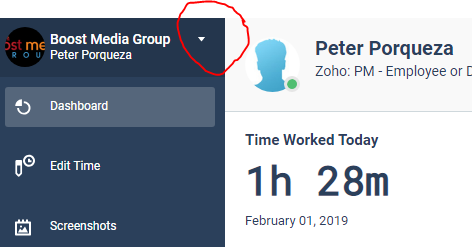
3. Choose "Your Integrations".
4. Turn off the integration. Confirm by Clicking "Remove Integration".

5. Turn it back on and it will ask you to generate an "Auth Code". Click on the below link to generate the code.
6.Click on the "Generate Token" button to generate code.
7. Copy and paste the code on the box in Time Doctor for the code. Then switch it back on.
8. Wait for the sync.
9. Once finished, Go back to Time Doctor desktop client and press ctrl + r to sync integration. or go to Account > Sync.
10. This should refresh integration in Time Doctor.
*****If this does not resolve your issue, kindly reach out to me so that I provide you with assistance*****
Related Articles
Troubleshooting Time Doctor Integration Problems
Troubleshooting Time Doctor Integration Problems Modified on: Sep 6 If you are experiencing sync issues with your integration (if your tasks are not visible in the desktop application) and there is an error in the sync status, please try to disable ...Problems with Recorded Time
Problems with Recorded Time Modified on: Sep 6 If you notice some discrepancies between the hours you have tracked and the hours recorded on the Time Doctor website, some additional information will be needed to narrow down the possible cause. ...Integrate Zoho with Time Doctor
Note: Please note the integration currently works with Zoho Projects only. You Zoho account needs to have a Projects module for you to use the integration. Follow these simple steps to integrate Time Doctor with your Zoho account. Time Doctor users ...Using Avast Antivirus with Time Doctor
This tutorial applies to Avast Free Antivirus 7. If you are running Avast Internet Security, you might receive a popup message from Avast that might prevent Time Doctor from running. The following will show you how to exclude Time Doctor from Avast's ...Finding Time Doctor Local Cache Files in Windows and Exporting / Deleting App Local Data
NOTE: You must completely exit the Time Doctor application before deleting the cache. Open My Computer and navigate to the path below: For Windows Vista, Windows 7, Windows 8/8.1, and Windows 10: C:\Users\*YourUsername*\AppData\Roaming\Time Doctor ...