Integrate Zoho with Time Doctor
Note: Please note the integration currently works with Zoho Projects only. You Zoho account needs to have a Projects module for you to use the integration.
Follow these simple steps to integrate Time Doctor with your Zoho account. Time Doctor users or managers can skip to step 7, after their company owner or administrator has set up the integration in steps 1-6.
Of course all users will first need a Zoho account, and you will want to have your Zoho portal set up and at least one Project created within Zoho. Inside that project, create one or more tasks that are properly assigned to users in your organization. Then follow these steps to integrate Time Doctor with Zoho:
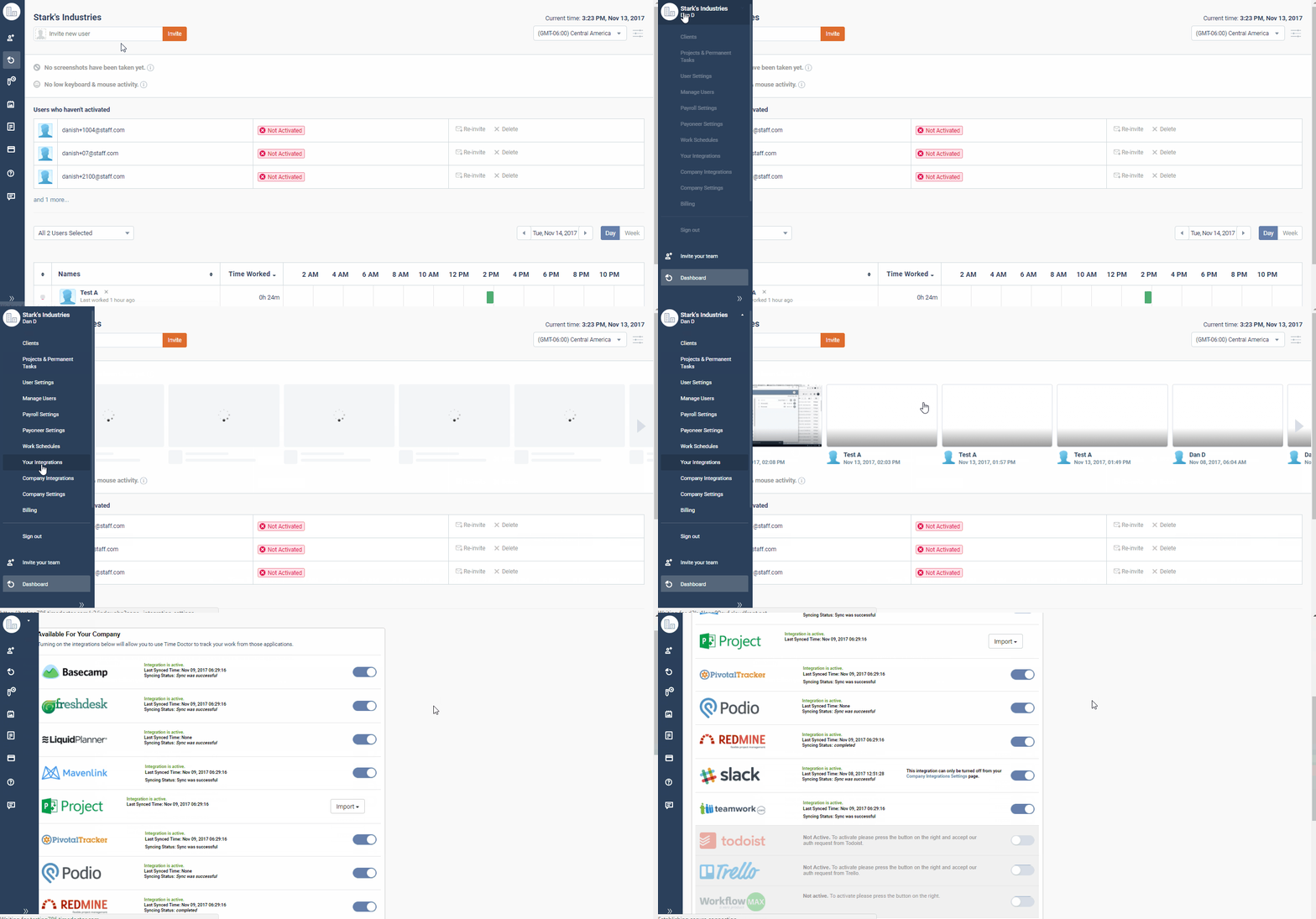
1.) As a company owner or administrator log into your Time Doctor web dashboard and navigate to left menu bar > click on Company logo > Company Integrations:
2.) Scroll to the bottom of the integrations list and click the ON/OFF button for Zoho:
3.) On the Zoho integration page look for the Turn it on link, and click on it:
4.) You will be prompted to enter your Zoho AuthToken. Your Zoho authtoken can be found here. For Zoho EU please click here.. If you are not logged into your Zoho account in your current browser session, you will be asked to log in before seeing the Zoho AuthToken

6.) After submitting the token, you should see a success screen. You can then inform your other team members to turn on their own integrations (see steps 7-10 below)
7.) If you are a manager or a user in your Time Doctor account, you will need to wait for your Time Doctor company owner or administrator to turn on the integration (as seen in steps 1-6 above). Once they've done so, you can log into your own Time Doctor web dashboard and navigate to left menu bar > click on Company logo > Integration Settings
8.) On your integration list page, you should see the Zoho integration near the top. First, click on the link to obtain your Zoho AuthToken. You'll be asked to log into your Zoho account if you are not already logged in with your current browser session. Copy and paste that AuthToken into the designated field then click the ON/OFF button
9.) Upon completion you will be presented with this success screen:
10.) Be sure the tasks in Zoho are properly assigned to you, and then refer to this support document on how to see the tasks in your Time Doctor desktop application. That's it!
Related Articles
Time Doctor Issues
Here are some basic trouble shooting steps for TD general issues. (The steps mentioned below are assumed to fix all known issues for TD) - Restart your TD client. Before a new integration will even appear on the desktop client, you may need to ...Troubleshooting Time Doctor Integration Problems
Troubleshooting Time Doctor Integration Problems Modified on: Sep 6 If you are experiencing sync issues with your integration (if your tasks are not visible in the desktop application) and there is an error in the sync status, please try to disable ...Using Avast Antivirus with Time Doctor
This tutorial applies to Avast Free Antivirus 7. If you are running Avast Internet Security, you might receive a popup message from Avast that might prevent Time Doctor from running. The following will show you how to exclude Time Doctor from Avast's ...Change Time Zone
Log into mail.zoho.com --> settings --> General --> Time Zone/Date format --> Change the time zone and click on save --> This configuration change is global across all Zoho applications.TimeDoctor Chrome Extensions - New Way Time Tracking (bulletproof)
INFO: This will work only with Chrome. If needed please install Google Chrome first Please in Chrome open https://chrome.google.com/webstore/detail/time-doctor-chrome-extens/ccokehohfncgmmbmnnhbhflmfbmimdgf Add the "Time Doctor Chrome Extension" to ...