Finding Time Doctor Local Cache Files in Windows and Exporting / Deleting App Local Data
NOTE: You must completely exit the Time Doctor application before deleting the cache.
Open My Computer and navigate to the path below:
For Windows Vista, Windows 7, Windows 8/8.1, and Windows 10:
C:\Users\*YourUsername*\AppData\Roaming\Time Doctor
NOTE: Replace *Your Username* with whatever username you use to log into Windows.
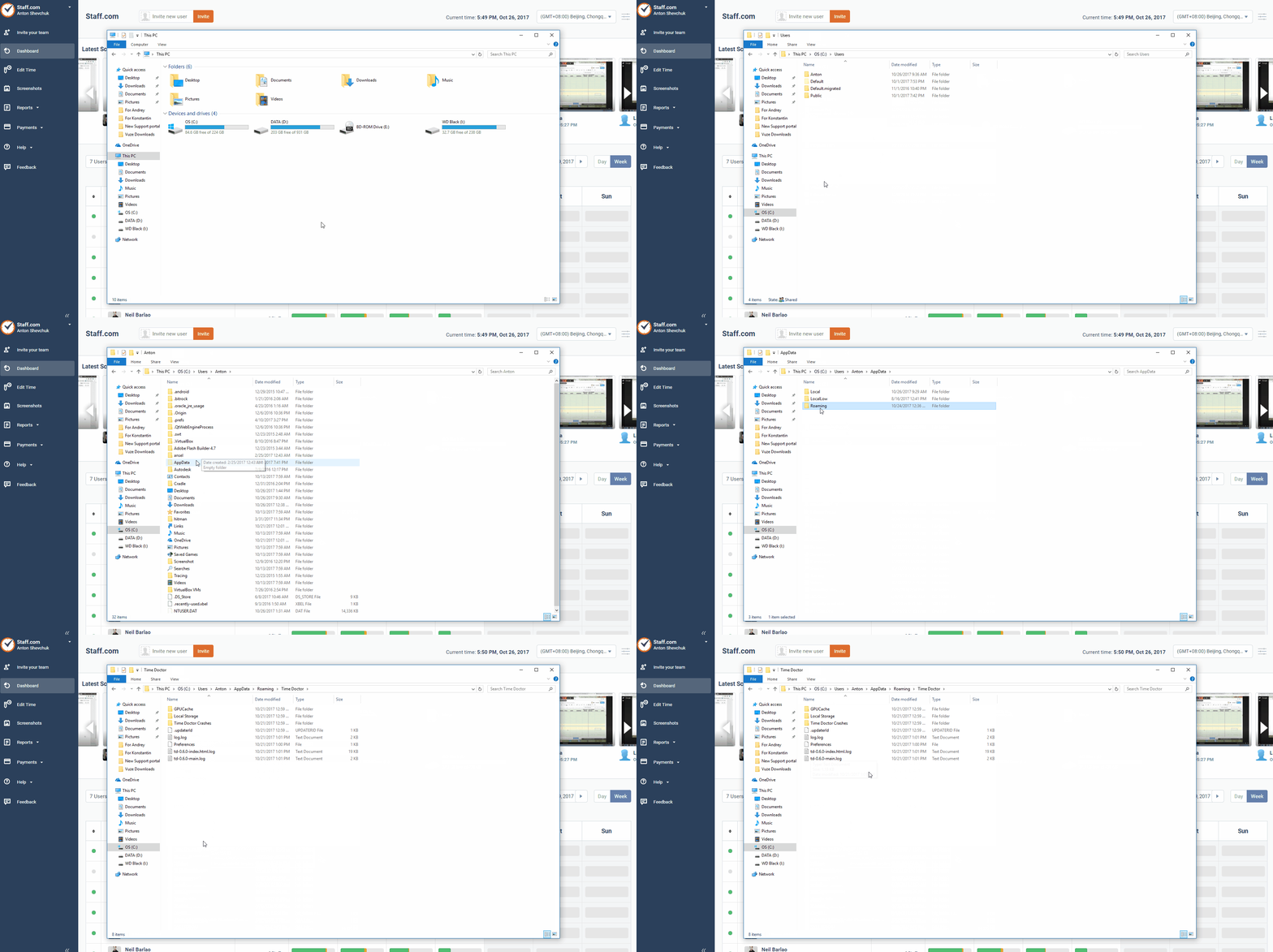
If you cannot see the AppData or Local Settings folder, this may be because it is hidden by default.
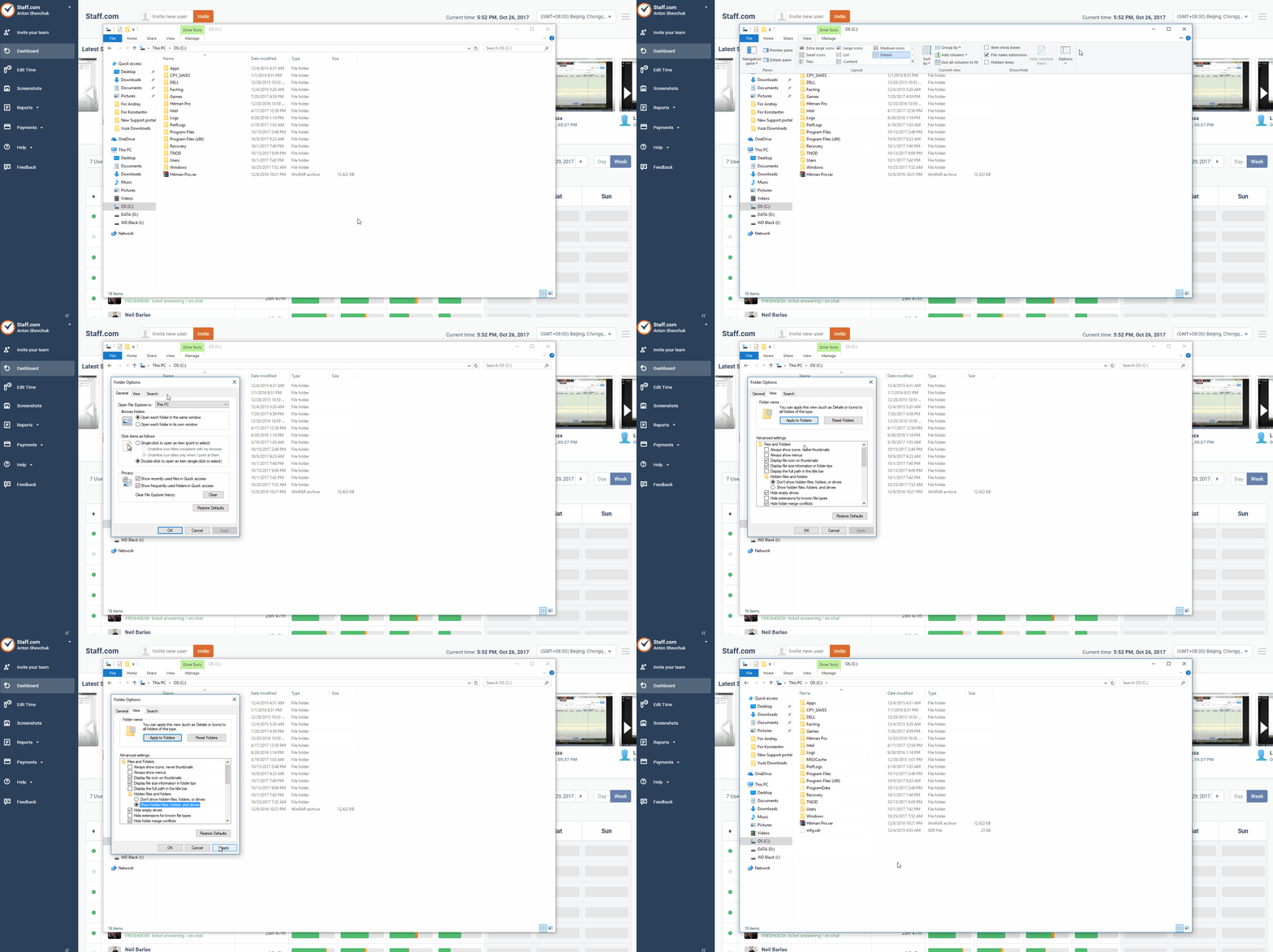
To see it, you will need to display your hidden folders. To view hidden
files and folders in Windows Vista and Windows 7, click on the Organize dropdown menu in any Windows file folder and select Folder and search options.
For Windows 10, please follow the steps below:
To find Time Doctor Lite or Pro cache files, please go to: C:\Users\*YourUsername*\AppData\Local
There you will find either a Time Doctor Lite or Time Doctor Pro folder, depending on the version you have installed.
NOTE: Replace *YourUsername* with whatever username you use to log into Windows.
Related Articles
Problems with Recorded Time
Problems with Recorded Time Modified on: Sep 6 If you notice some discrepancies between the hours you have tracked and the hours recorded on the Time Doctor website, some additional information will be needed to narrow down the possible cause. ...Using Avast Antivirus with Time Doctor
This tutorial applies to Avast Free Antivirus 7. If you are running Avast Internet Security, you might receive a popup message from Avast that might prevent Time Doctor from running. The following will show you how to exclude Time Doctor from Avast's ...Time Doctor Issues
Here are some basic trouble shooting steps for TD general issues. (The steps mentioned below are assumed to fix all known issues for TD) - Restart your TD client. Before a new integration will even appear on the desktop client, you may need to ...Integrate Zoho with Time Doctor
Note: Please note the integration currently works with Zoho Projects only. You Zoho account needs to have a Projects module for you to use the integration. Follow these simple steps to integrate Time Doctor with your Zoho account. Time Doctor users ...Troubleshooting Time Doctor Integration Problems
Troubleshooting Time Doctor Integration Problems Modified on: Sep 6 If you are experiencing sync issues with your integration (if your tasks are not visible in the desktop application) and there is an error in the sync status, please try to disable ...