Synchronizing Zoho CRM with Google Calendar
You can go to Zoho Mail Settings -> Calendar -> Synchronize -> Google Calendar sync.
When
you sync your Google Calendar account in Zoho, we sync
your primary calendar (1st calendar) of your Google
Calendar into Zoho Calendar. No events created under My
Calendars in Zoho Calendar will be synced/added into Google
Calendar.
Note: While adding event from Zoho Calendar, make sure you select Google Calendar from the calendar drop down, so that the events get synced with Google Calendar.
Note: While adding event from Zoho Calendar, make sure you select Google Calendar from the calendar drop down, so that the events get synced with Google Calendar.
This feature is for the Google Users.
Google Apps users can refer to Zoho CRM for Google Apps Users
Google Apps users can refer to Zoho CRM for Google Apps Users
Synchronizing calendar entries of Google Calendar and that of the Zoho CRM Calendar is now made easy with the Google Calendar Synchronization feature. You can update the calendar entries in either Google Calendar or Zoho CRM and have them updated in both. If you delete the sync configurations and again synchronize the calendar events, then duplicate records will be created. In case of two-way sync, duplicates will be created in both Zoho CRM and Google Calendar.
Availability
 Profile Permission Required: Users with the Sync with Google Calendar permission can access this feature.

Note:
- You should also have the profile permissions for Sync with Google Calendar and the Activities tab, i.e. View, Create, Edit and Delete permissions.
To configure synchronization settings
- Log in to Zoho CRM.
- In Zoho CRM, go to Setup >Marketplace >Google > Calendar.
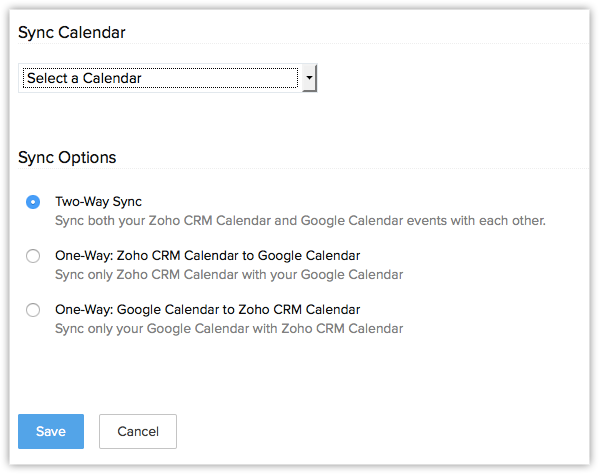
- In the Calendar Synchronization page, do the following:
- Select the Sync Calendar from the drop-down list.
- Choose any one of the SyncOptions:
- 2 Way Sync
- 1-Way: Zoho CRM Calendar to Google Calendar
- 1-Way: Google Calendar to Zoho CRM Calendar
- 2 Way Sync
- Select an option for the guests that you add in your events:
- Add guest(s) in Google Calendar events as Contacts in Zoho CRM.
- Do not add them.
- Add guest(s) in Google Calendar events as Contacts in Zoho CRM.
- Select the Sync Calendar from the drop-down list.
- Click Save.
Note:
- For both 1-way or 2-way synchronization for the first time, 5000 calendar entries for the past 3 months, from Google Calendar are synchronized with Zoho CRM. For the consecutive syncs, maximum 500 entries will be synchronized.
- When you add an event in Zoho CRM, it will be synchronized instantly but events from Google Calendar will be synchronized every few minutes.
- If you delete the sync configurations and again synchronize the calendar events, then duplicate records will be created. In case of two-way sync, duplicates will be created in both Zoho CRM and Google Calendar.
- Events added from Google Calendar will be added under the All Events list view in Zoho CRM.
- Only the Calendars for which you have the Read and Write permission will be listed in the Google Calendar drop-down list.
- In case of two pop-up reminders for the event coming from Google Calendar, only the first pop-up reminder will be added in CRM.
- Events with no title in Google Calendar will be added with the Subject as " Not Provided " in CRM.
- We do not support the synchronization of recurring events.
The data will be transferred based on the field mapping mentioned below:
| Zoho CRM Fields | Google Calendar Fields |
| Subject | Title |
| Start date time/end date time | same as Zoho CRM |
| Remind At | Reminders |
| Venue | Where |
| Description | Description |
| Add Invitees | Add guests |
To deactivate the calendar synchronization
- Log in to Zoho CRM.
- In Zoho CRM, go to Setup >Marketplace >Google > Calendar.
- In the Calendar Synchronization page, click the Deactivate link.
Related Articles
Cancel Zoho CRM Trial
To cancel your Zoho CRM Plus trial: Log on to https://crmplus.zoho.com/ and click your image icon displayed on the upper-right corner of the page. You'll see a panel slide to the right of the page. Navigate to the Subscription section and click the ...How can I reset my Zoho CRM account password?
How can I reset my Zoho CRM account password? Users with any role can reset their password individually by clicking on the Forgot Password link in the Zoho CRM log in page. Follow the steps given below: 1. Click the Forgot Password link in the Zoho ...Zoho Vault - Password Reset
The secrets that you store on Zoho Vault literally remain secrets. The data remains completely private and can be decrypted only by you. Zoho Vault uses the host-proof-hosting technique for storing secrets.The passphrase is not stored anywhere in ...Integrate Zoho with Time Doctor
Note: Please note the integration currently works with Zoho Projects only. You Zoho account needs to have a Projects module for you to use the integration. Follow these simple steps to integrate Time Doctor with your Zoho account. Time Doctor users ...Install Zoho Plugins to the WordPress
Login to the WordPress using the Admin Credentials Visit the Plugins – > Add New page and search for Zoho (name of apps). Click to install. And then, activate the plugin